

Receiving your forwarded ticket
Once a ticket has been transferred to a supporter, they will receive an email to notify them and prompt the supporter to log in to their ticketing account to accept the ticket.
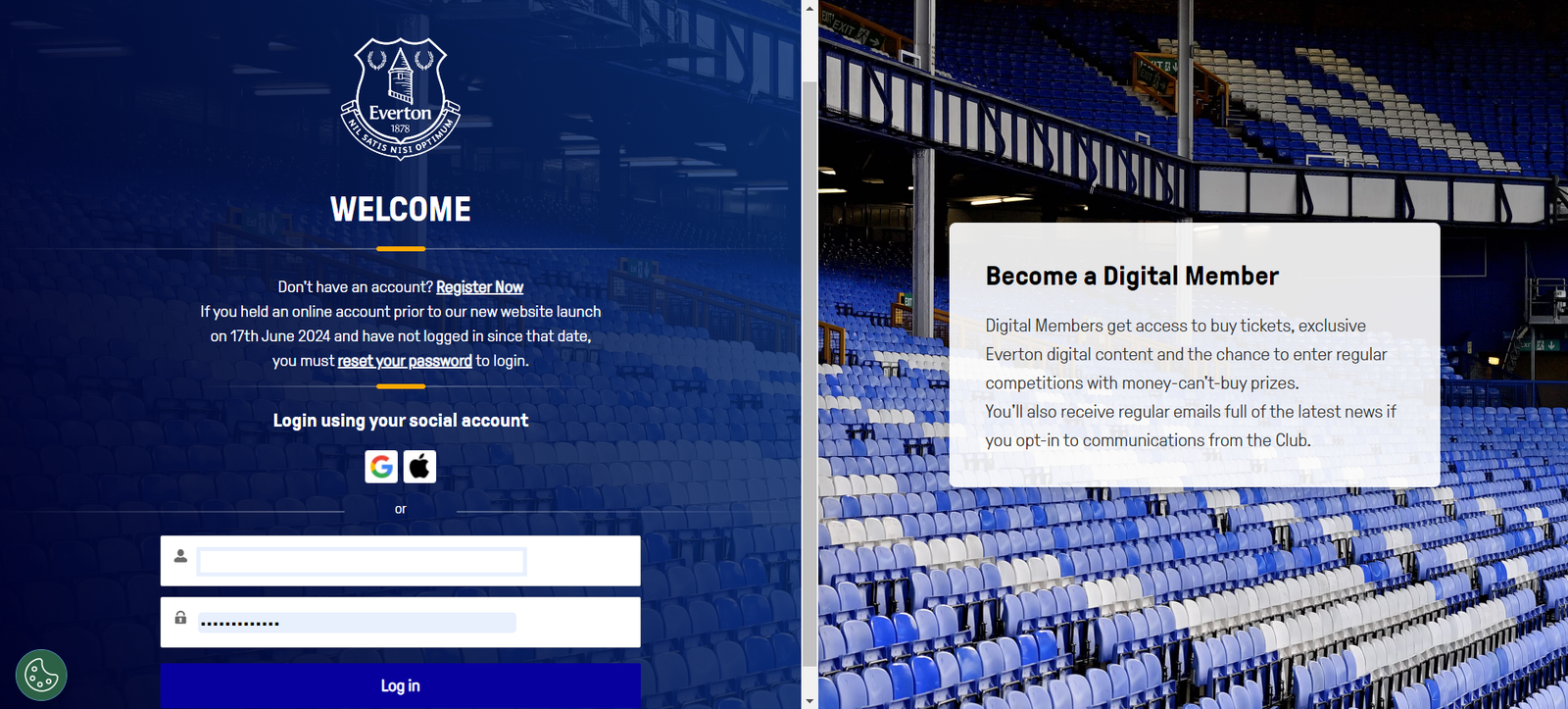
To access our ticket transfer platform, head to eticketing.co.uk/evertonfc and click the customer icon at the top right of the screen to log in.
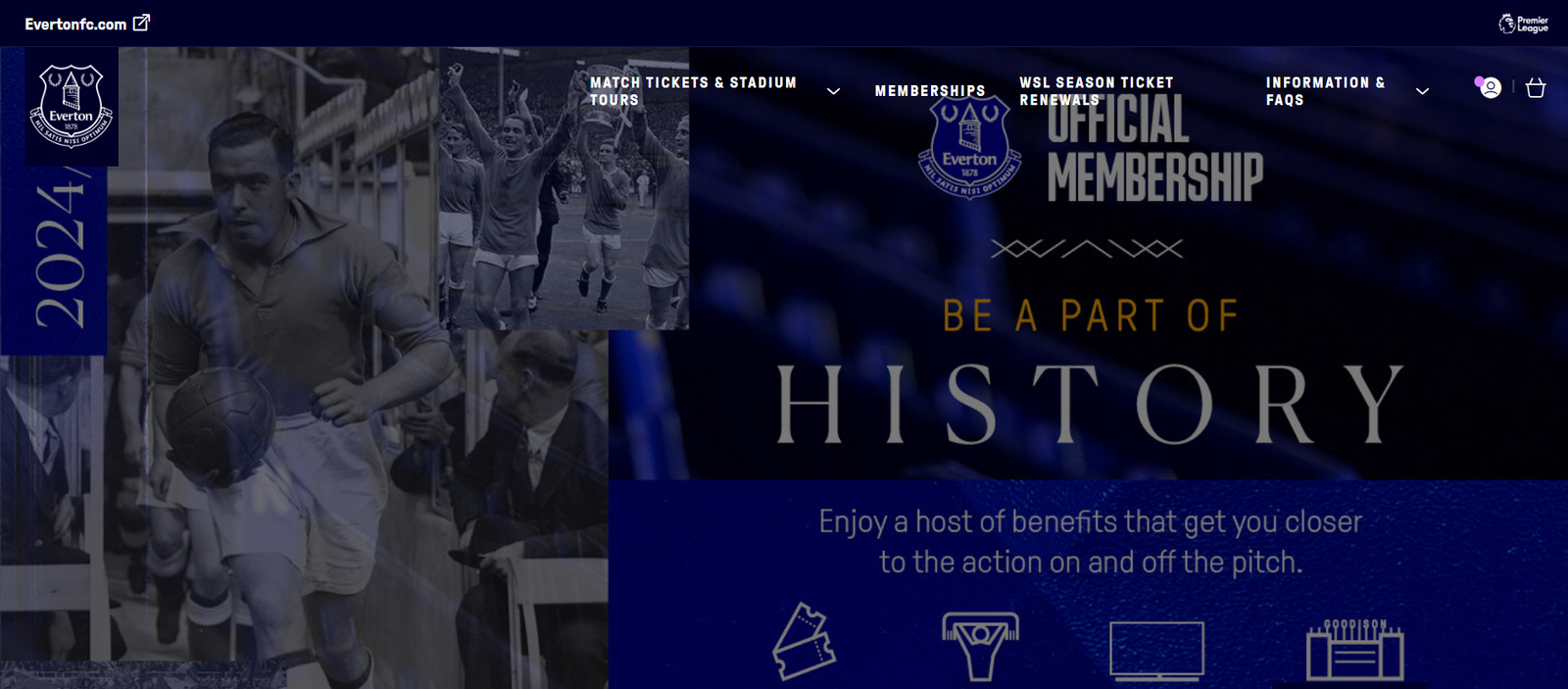
If you are already logged in at evertonfc.com this will automatically sign you in to your ticketing account. If you are not already logged in, you will be prompted to log in or create a Digital account.
Once logged in, click on the customer icon again. This will open some basic account information, such as your Supporter Number, the total number of away credits you have, and your current Ticketing Credit Balance. You will also see that it displays your ‘Next Game’, with the option to ‘Manage Tickets’.
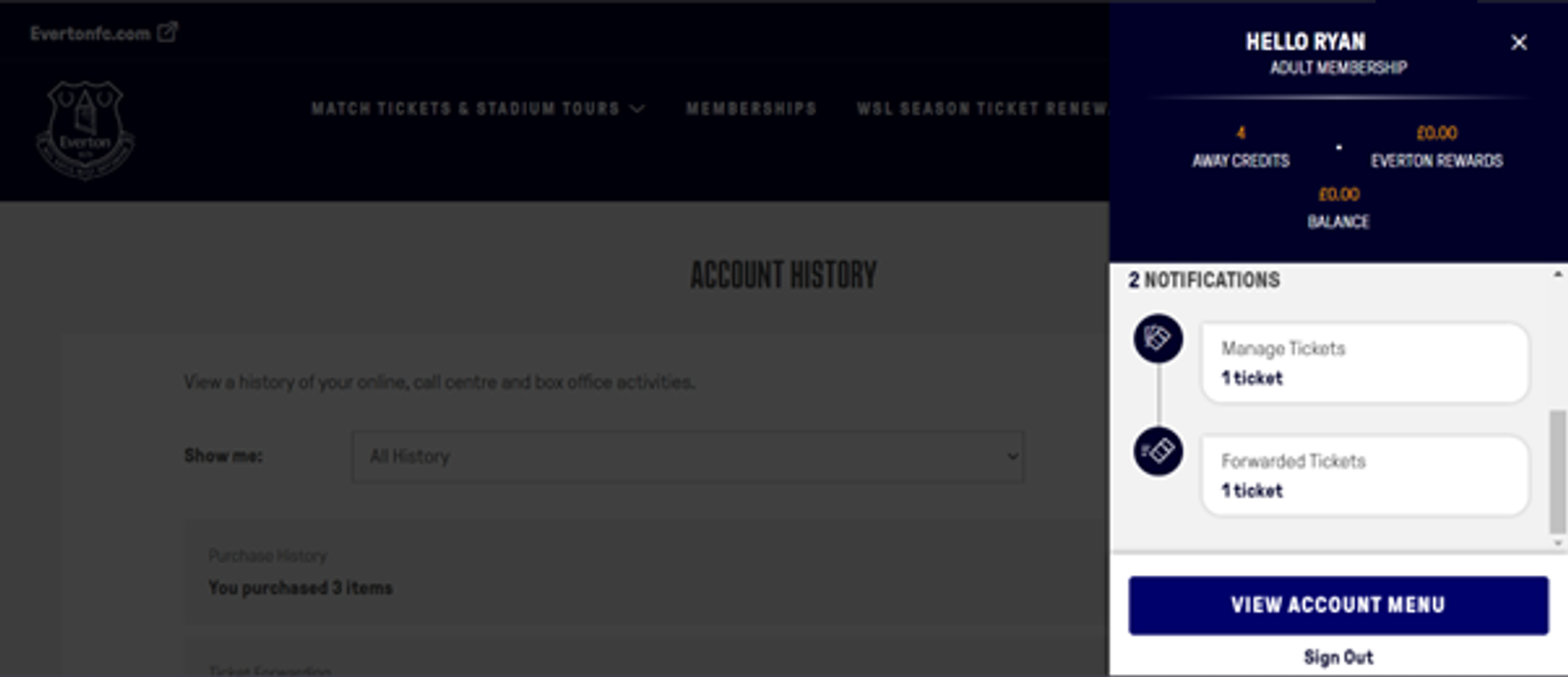
If you have been forwarded a ticket, it will display in the notifications as above. Click on Forwarded Tickets to view this.
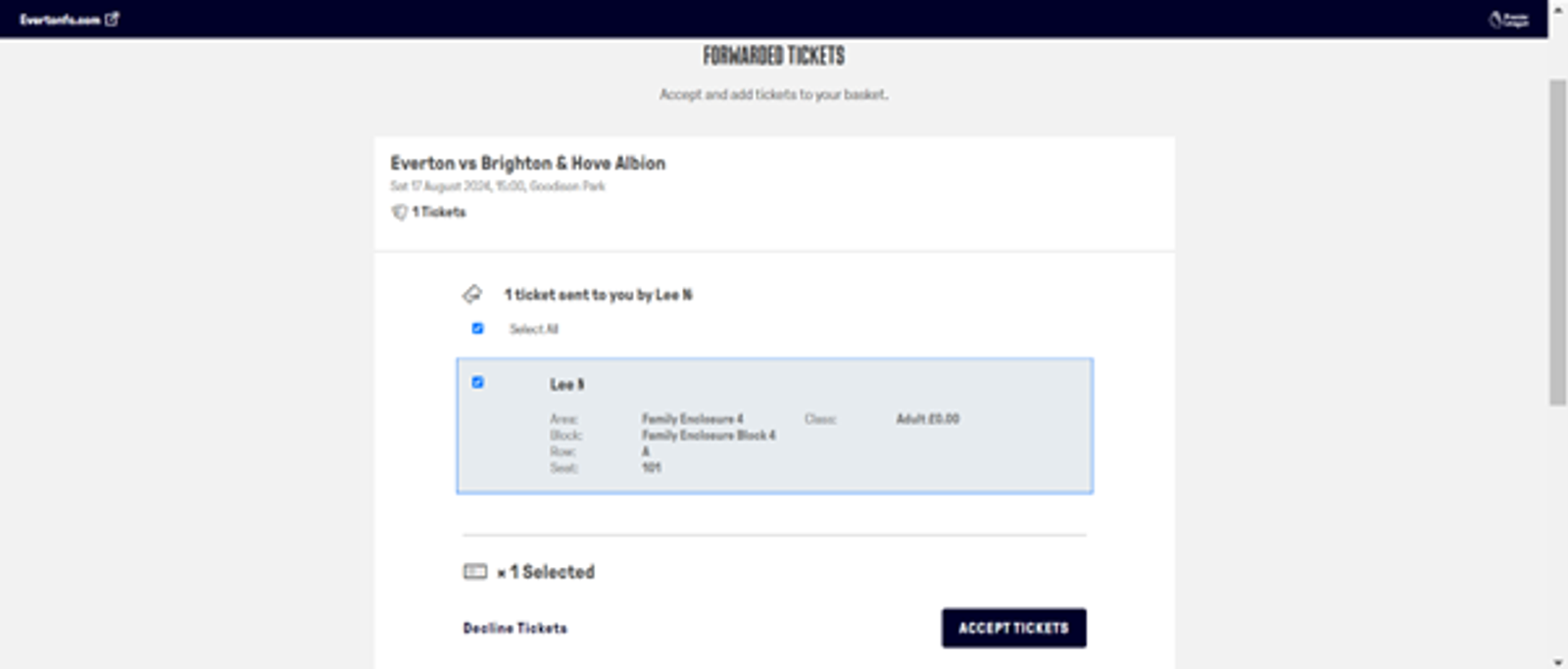
The fixtures for which you have been transferred a ticket will appear here. You will need to select the match you'd like to access, and then click on ‘Accept Tickets’. If for any reason you did not want to accept the ticket, you can click on ‘Decline Tickets’ which will then send the ticket back to the Season Ticket Member.
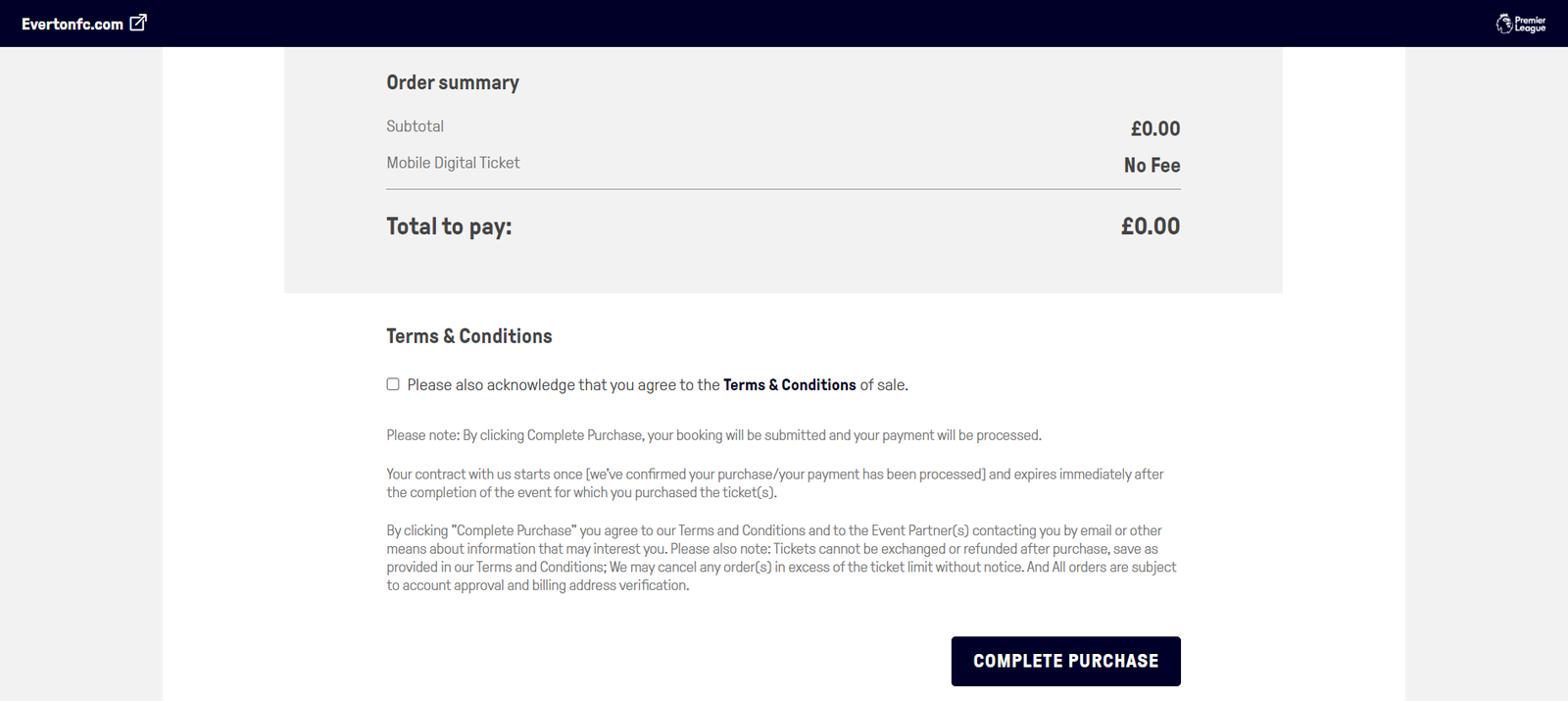
Review the seats being transferred before reading and accepting our terms and conditions, and then click on ‘Complete Purchase’.
You will next see a screen confirming the seat transfer.
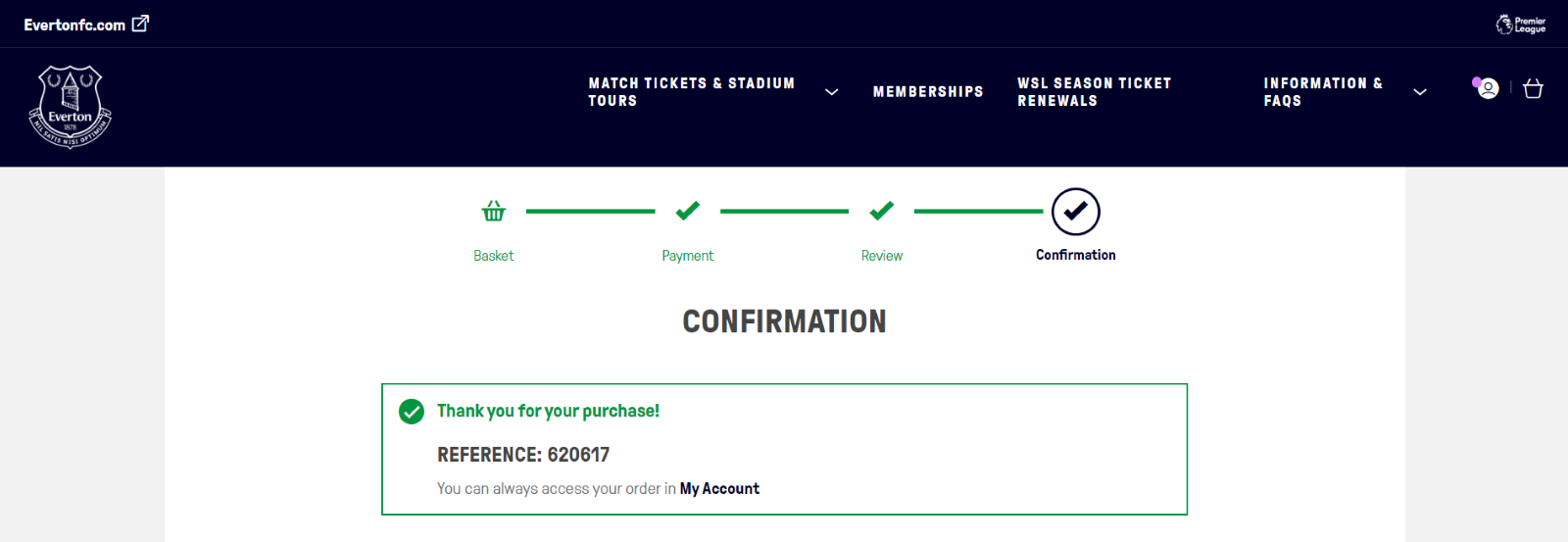
The recipient will now receive a confirmation email with instructions on how to download the ticket to their mobile device.























© Copyright 1878 - 2026 Everton Football Club