

The seat move (seat relocation) platform can be accessed on both desktop and mobile devices; however, we recommend using a desktop when selecting your new seat, as the Virtual Venue seating plan is optimised for this experience.
Log in to the Everton ticketing website. Click the account button in the top-right corner of the screen to bring up the ‘Account Menu’. The menu will display a notification for an eligible seat move and the number of valid tickets. Click on this notification to proceed.
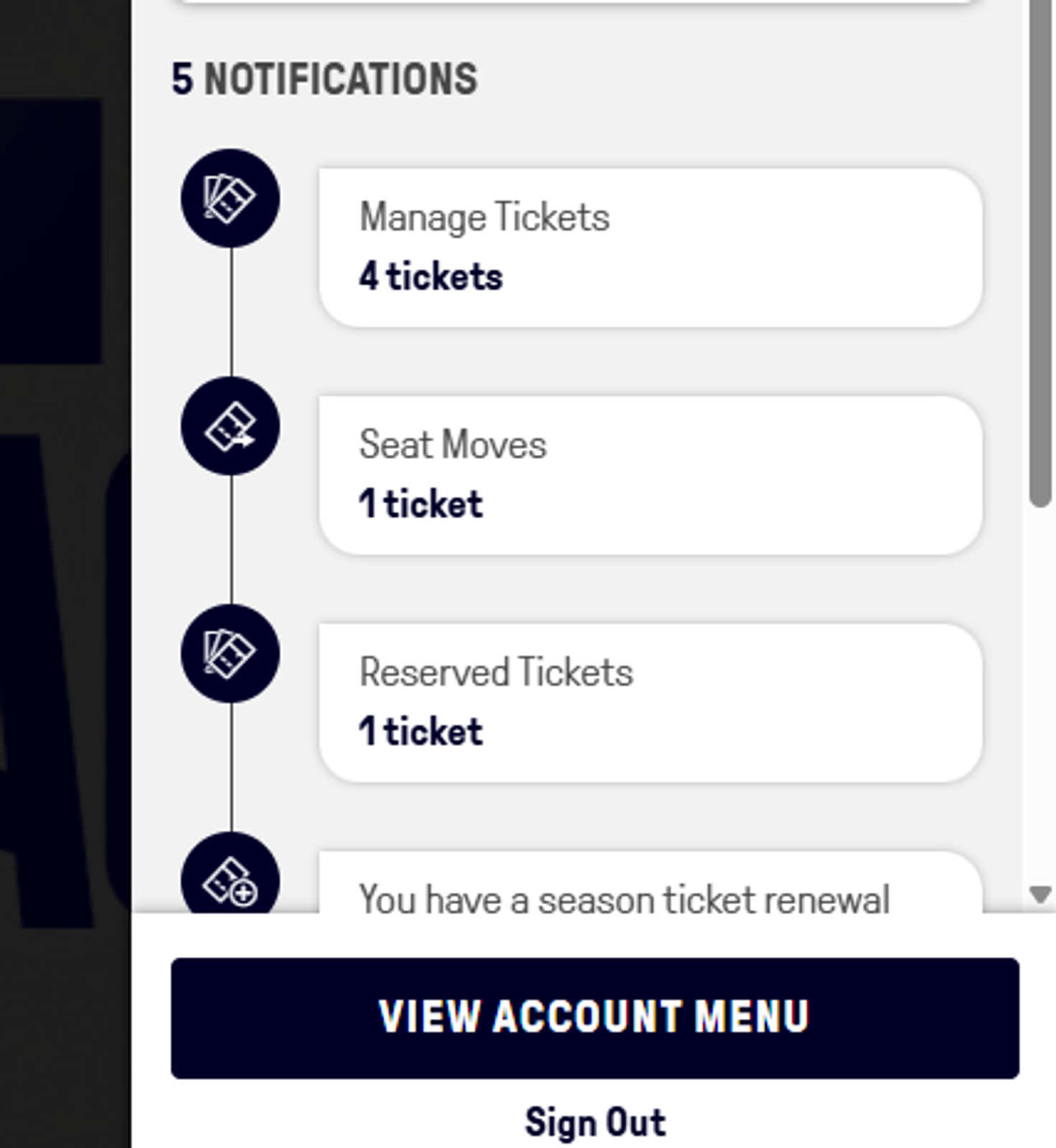
Please note, only the lead booker for the transaction in which the Season Ticket(s) was originally purchased will see the seat move feature. They will be able to move all Season Tickets within that transaction.
The lead booker will also need to have all relevant people added to their Network and have been given the necessary privileges to manage tickets on behalf of the supporters in question. More information on Ticketing Networks and setting privileges can be found here.
Select the relevant season displayed and click ‘Show Details’

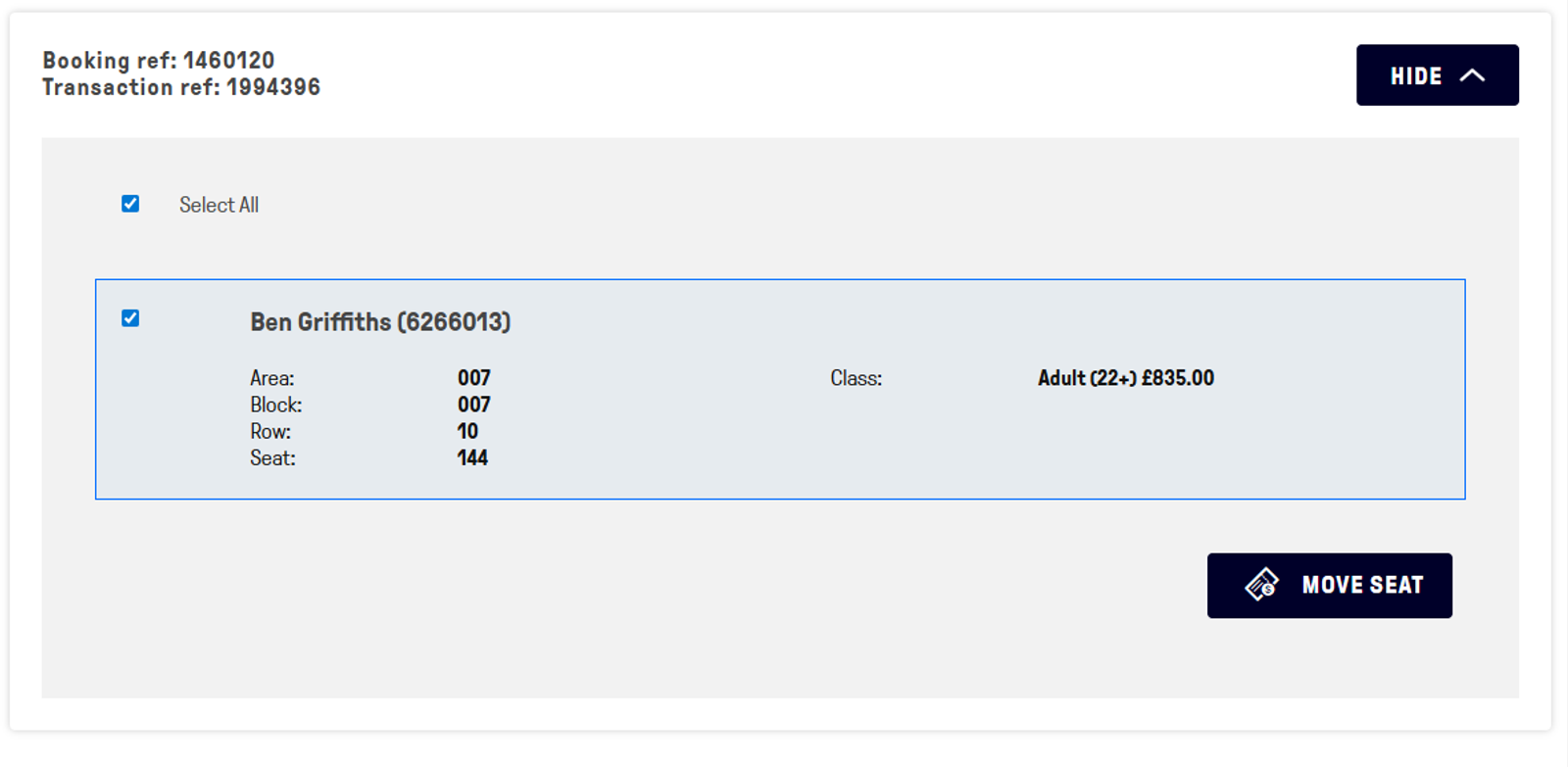
Valid Season Tickets eligible to be moved will be grouped by transaction. Tick the Season Ticket(s) to be moved and select ‘Move Seat’.
Please note, only Season Tickets purchased within the same original transaction can be moved together.
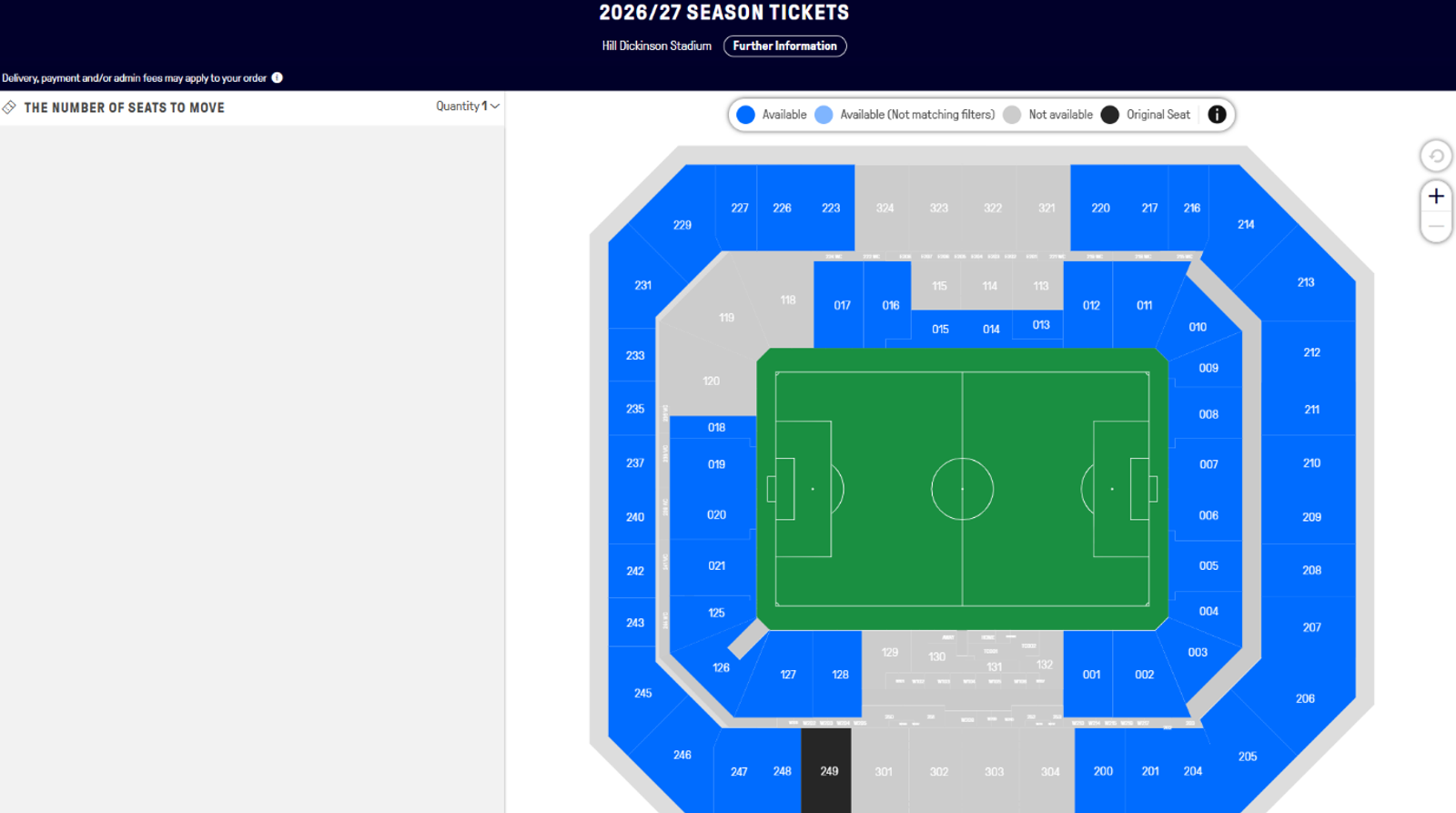
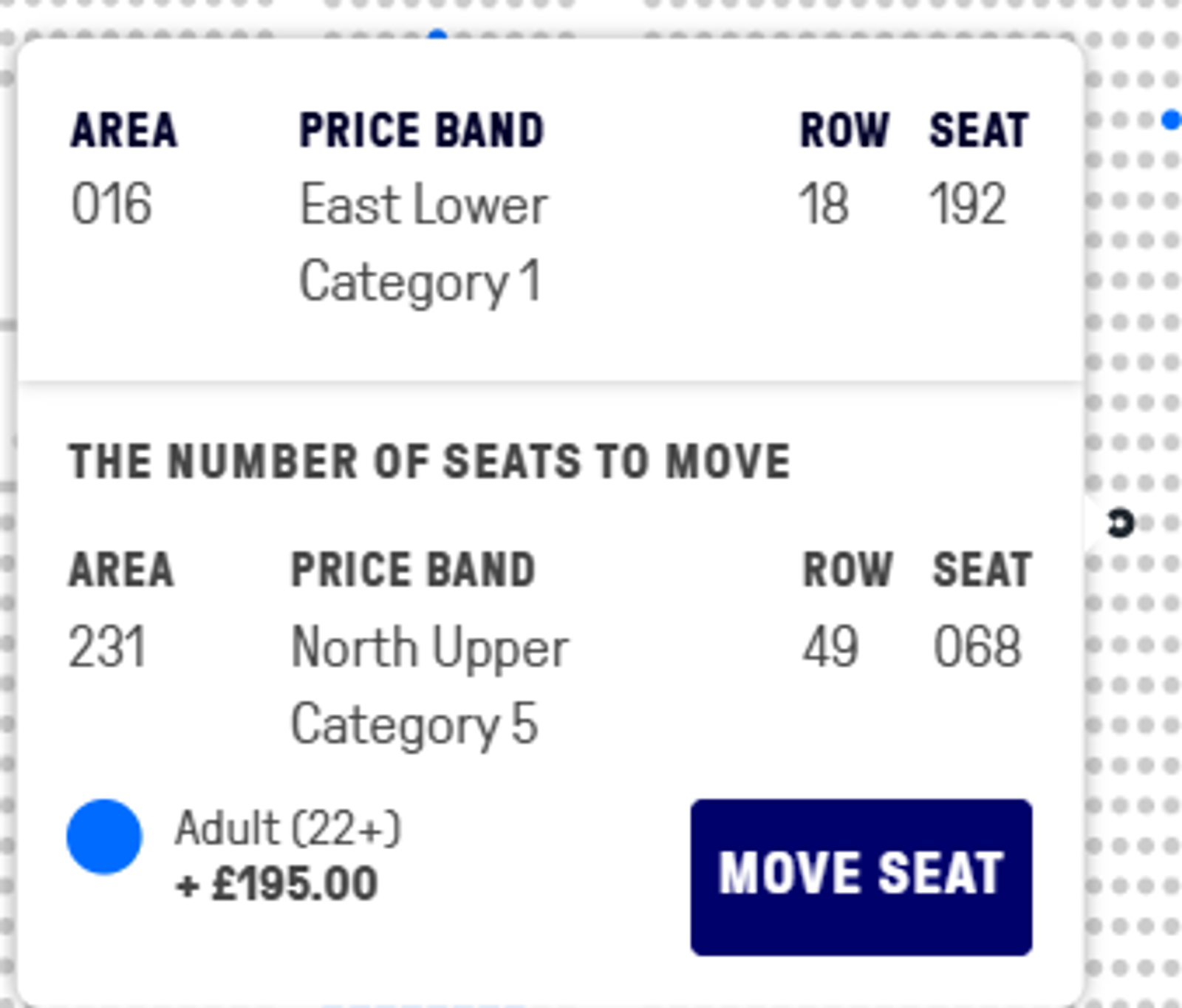
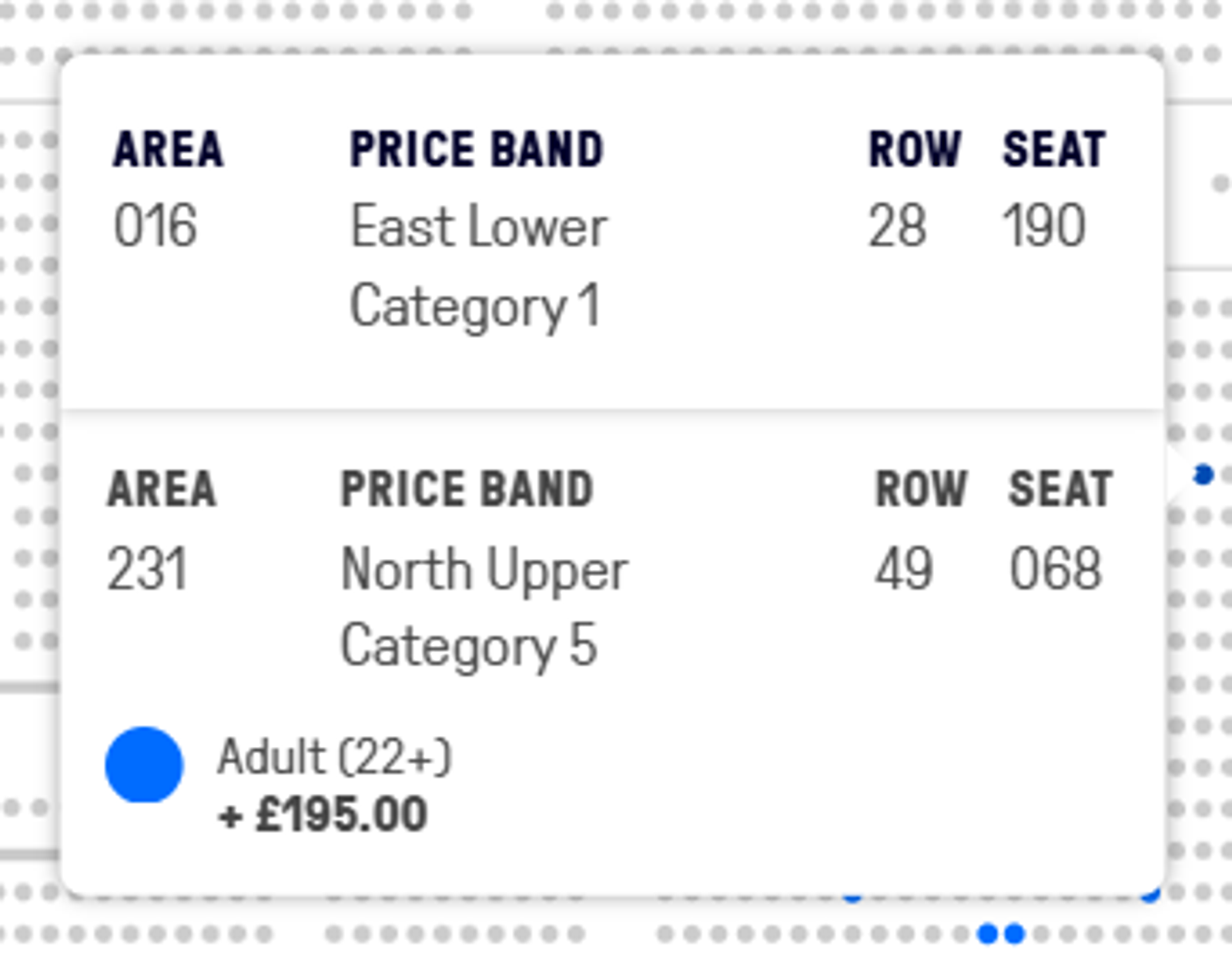
The plan will now display all the available seats you can select from. The block with the current renewed seat(s) in will be highlighted in black. Hovering over a seat will display the seat details and the price difference to move to this seat. To add this seat to the basket, click the seat and select ‘Move Seat’. Click the basket icon in the top right-hand corner to proceed to checkout.
Checkout - Price Increase
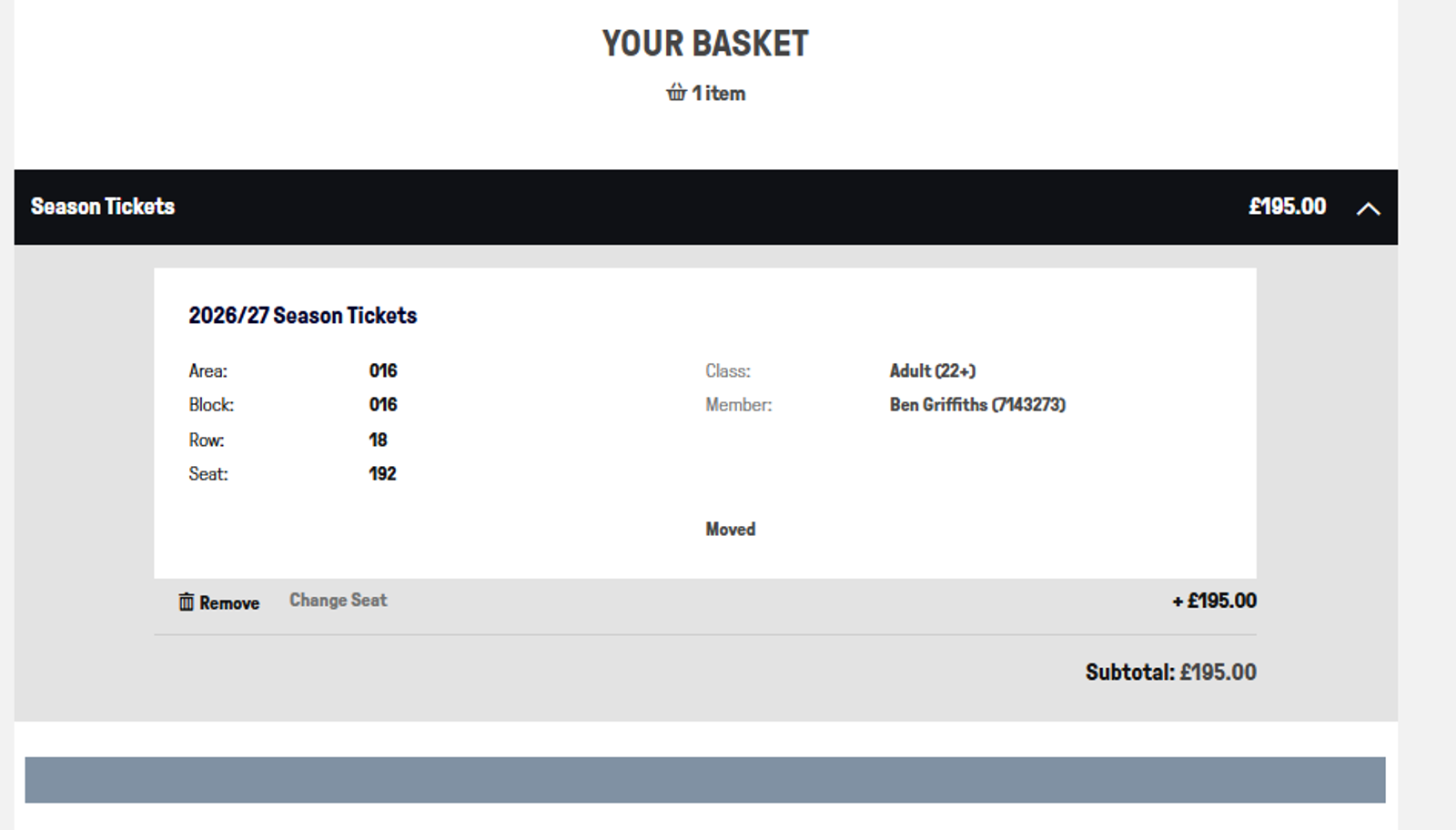
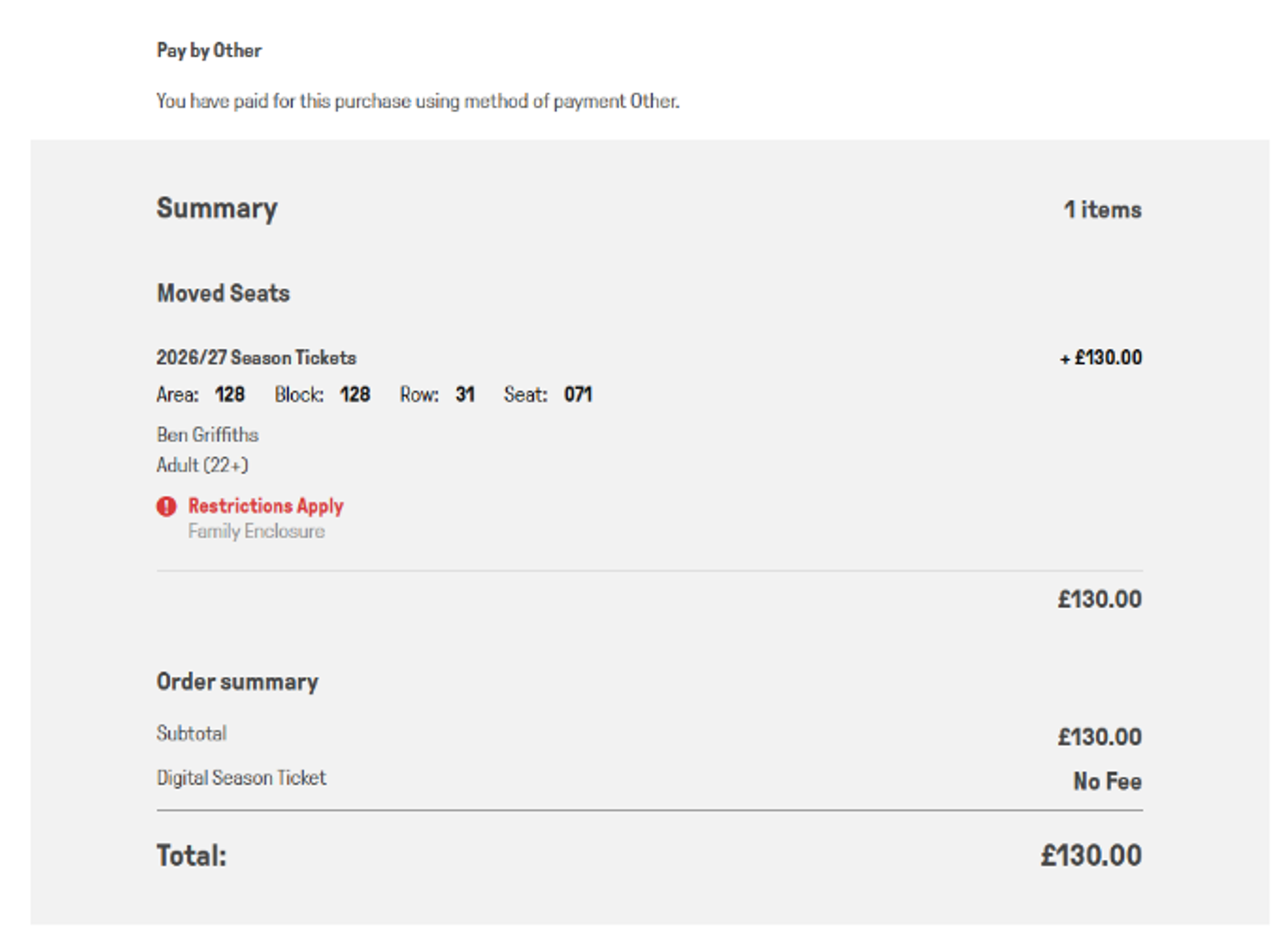
If the price difference is greater than the original transaction amount, proceed through like a standard transaction to pay the outstanding amount and complete the purchase. As the feature is for seat moves only, there is no option for the supporter to amend the price class or the assignee. Supporters will be able to pay the outstanding amount via a credit or debit card payment.

Checkout - Price Decrease
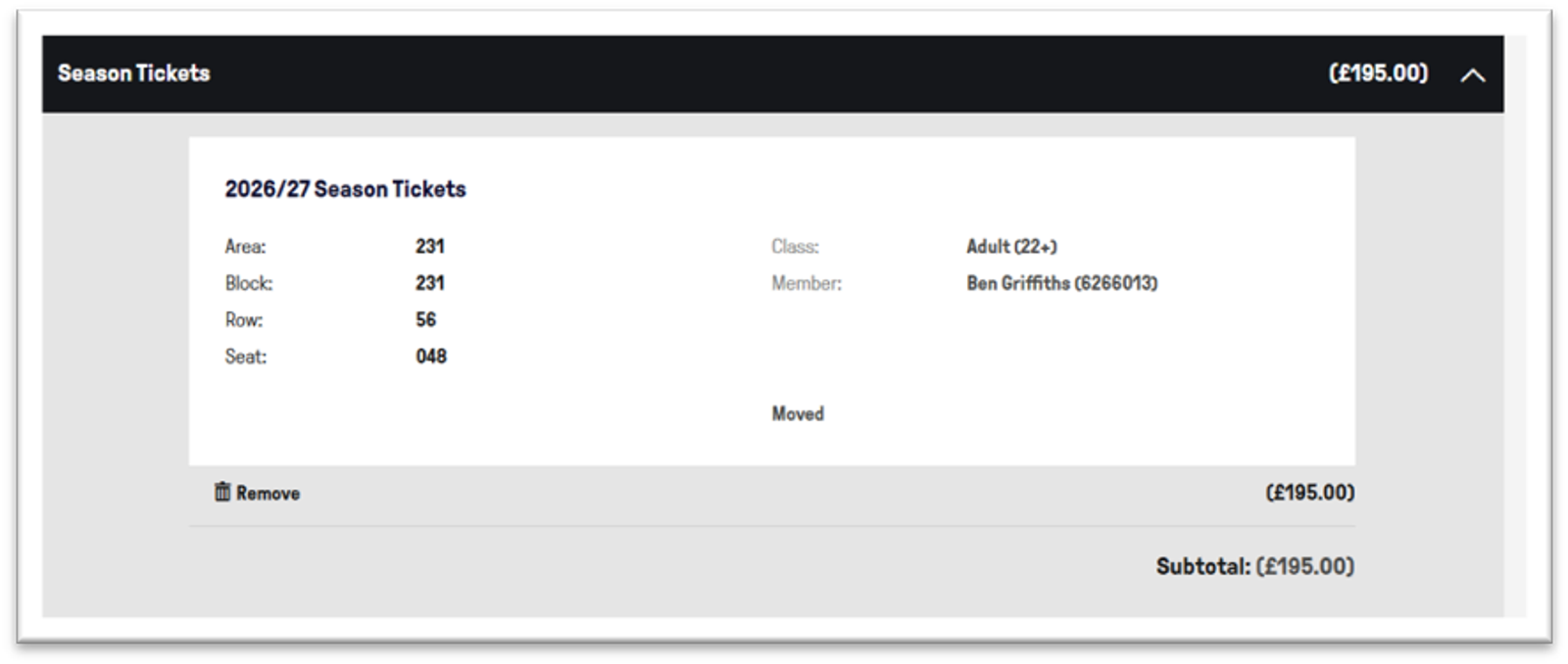
If the cost of the seat(s) is less than the original location, you must still move through the basket and checkout as normal. For clarity, a price decrease will display with the value in brackets (as below). Instead of reaching the checkout and being presented with the available methods of payment, a screen titled ‘Refund’ will display. Select ‘Review Order’ to proceed. Review the details displayed and then select ‘Complete Purchase’.
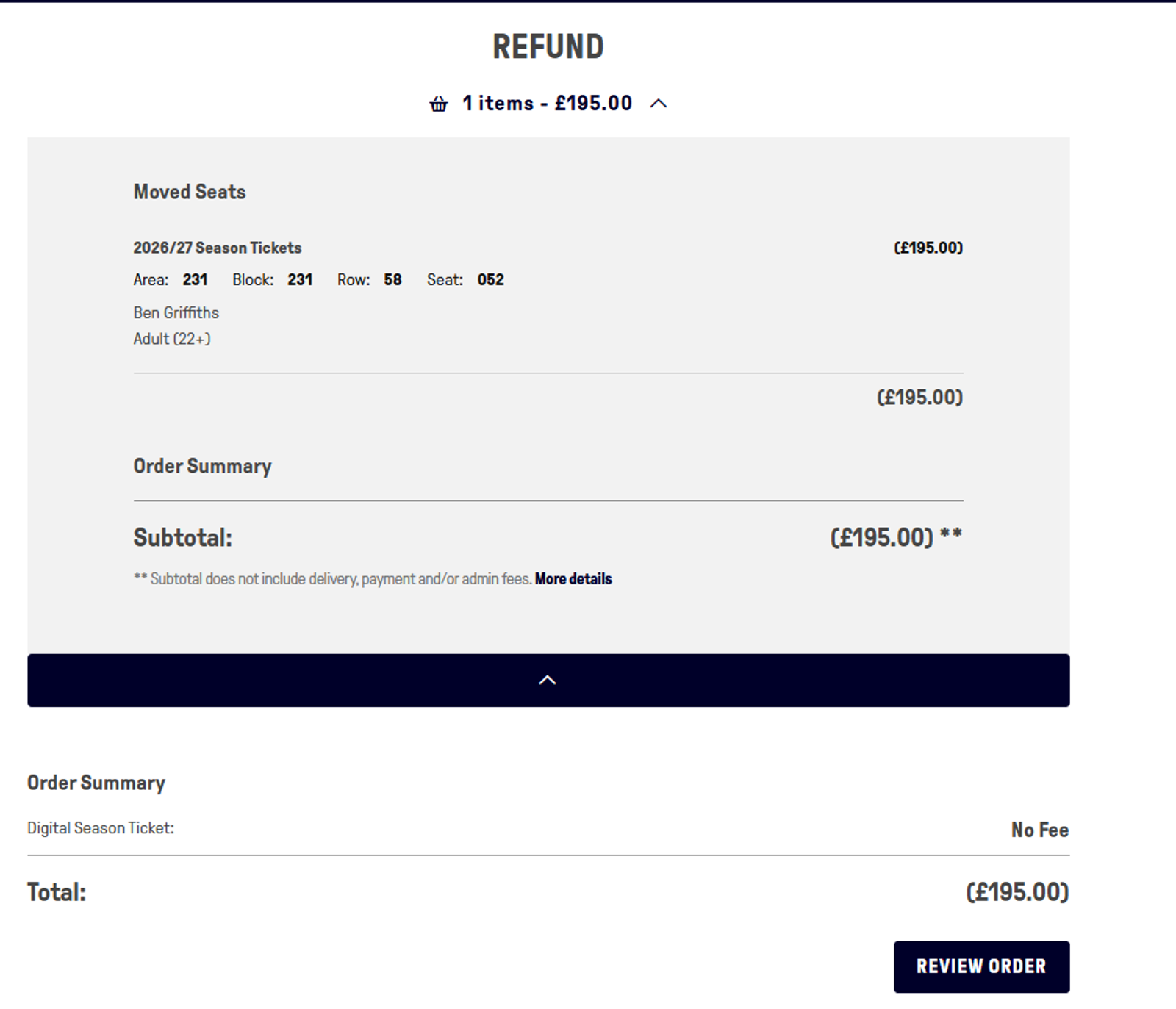
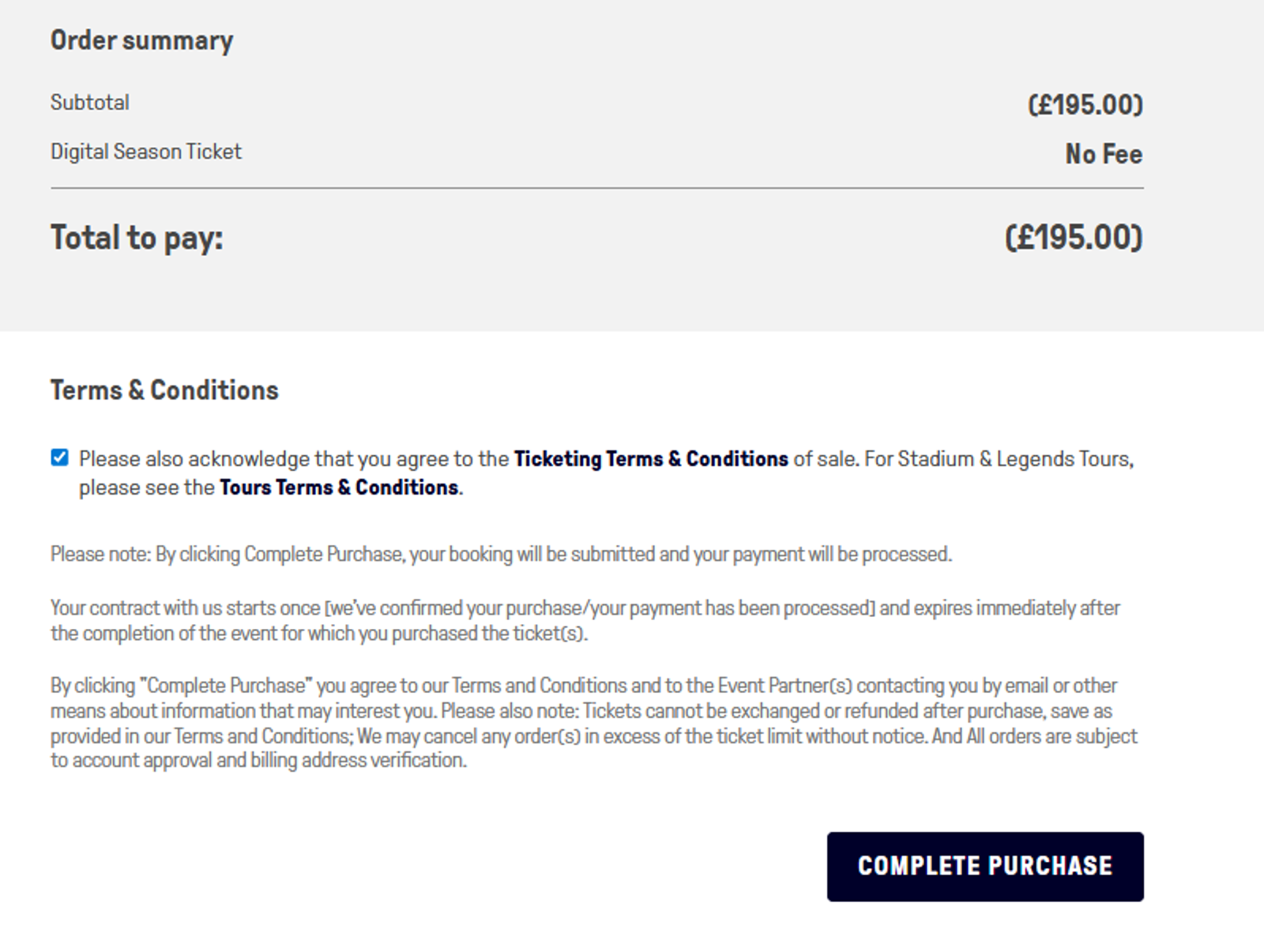
Once you have completed this process, the Season Ticket(s) will be moved and the value of any refunds will be returned to the lead booker as account credit. This can be kept as account credit for future purchases or withdrawn back to the lead booker’s bank account as cashback.
Account Cashback
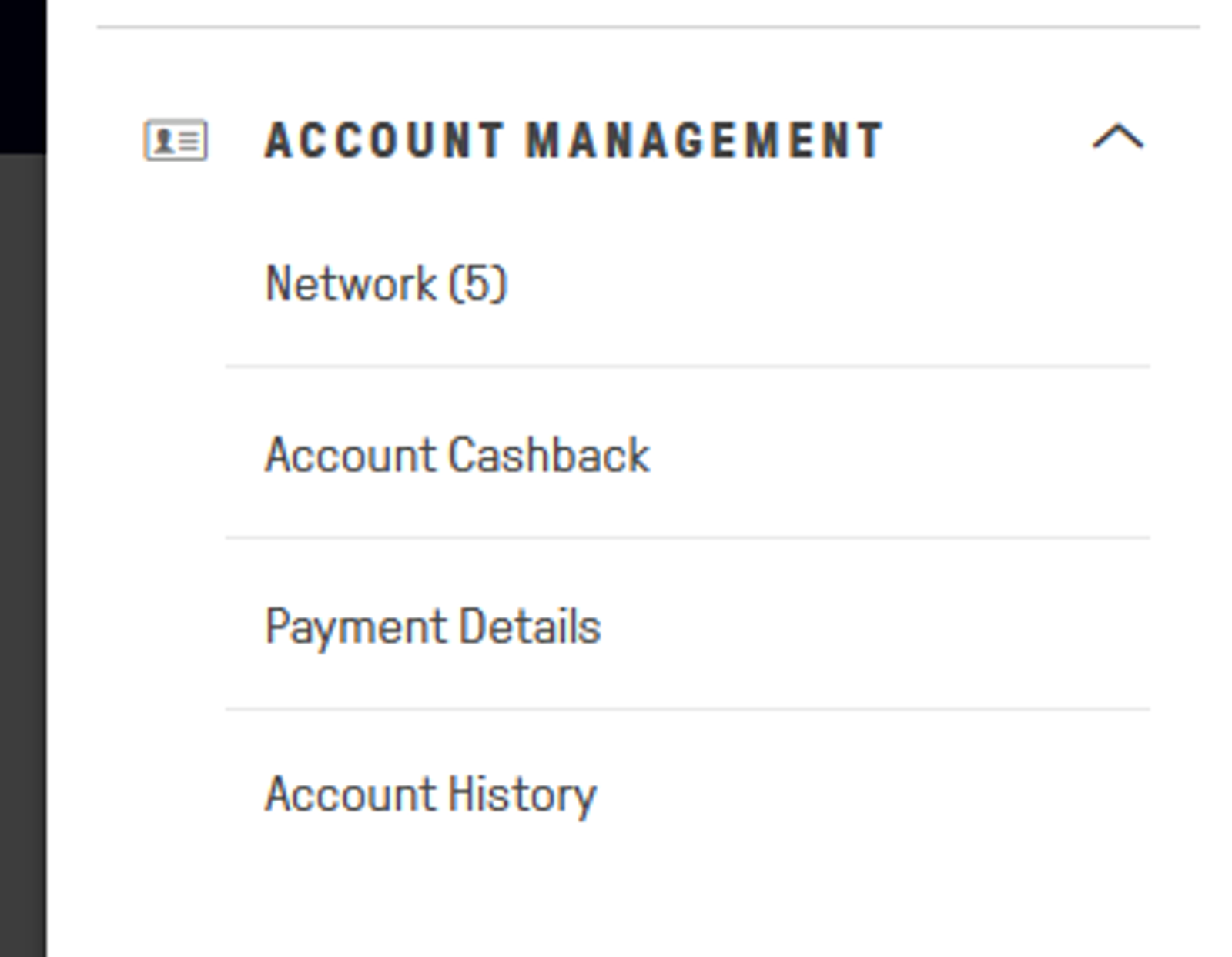
To start the process of claiming cashback, either click ‘Cashback’ from the order confirmation (this will only display if the transaction returned credit to the lead bookers account) or go to the account menu and follow the path View Account Menu > Account Management > Account Cashback.
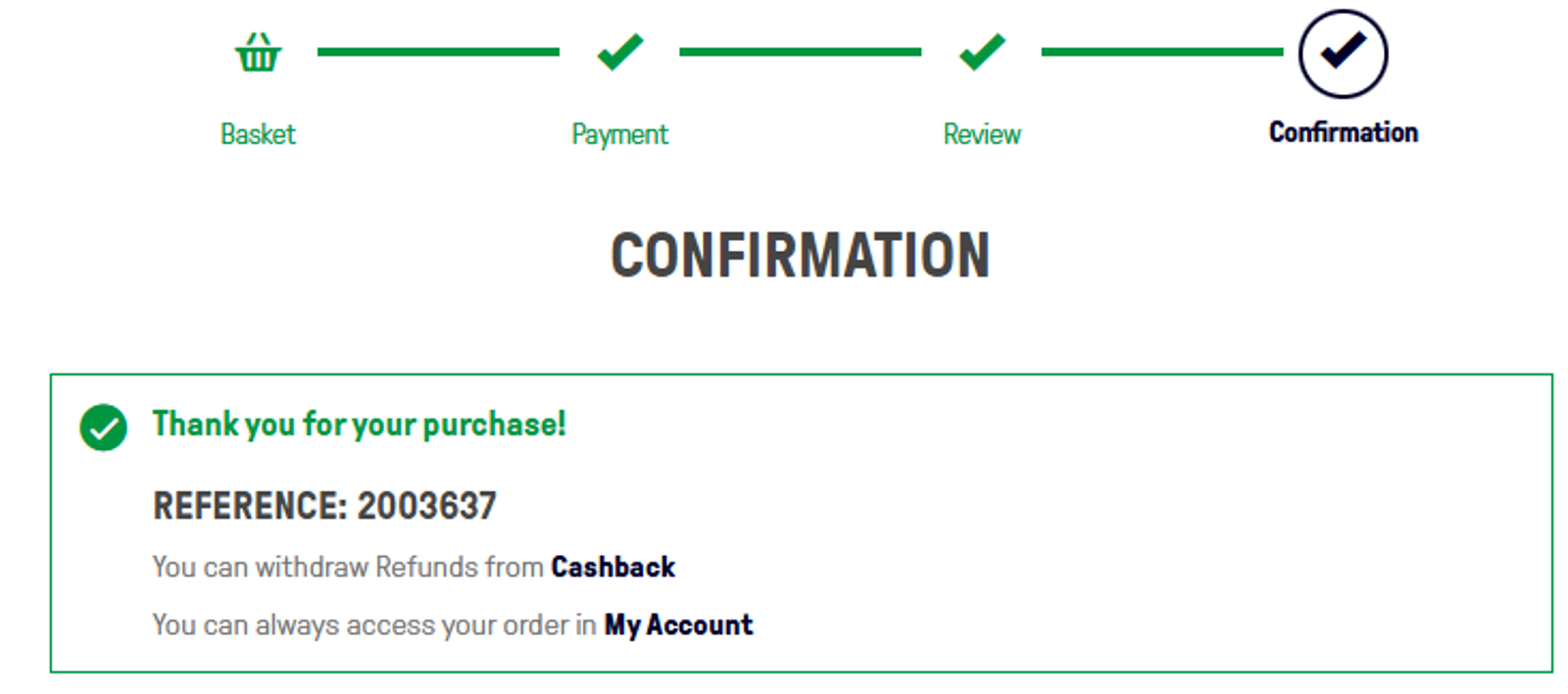
The resulting window will display the funds available in the account. Please note, only credit on the logged in account will be able to be withdrawn. Enter the amount requested to be withdrawn and the details of the bank account the money should be transferred to. Please double check all details are correct before choosing ‘Transfer Funds’.
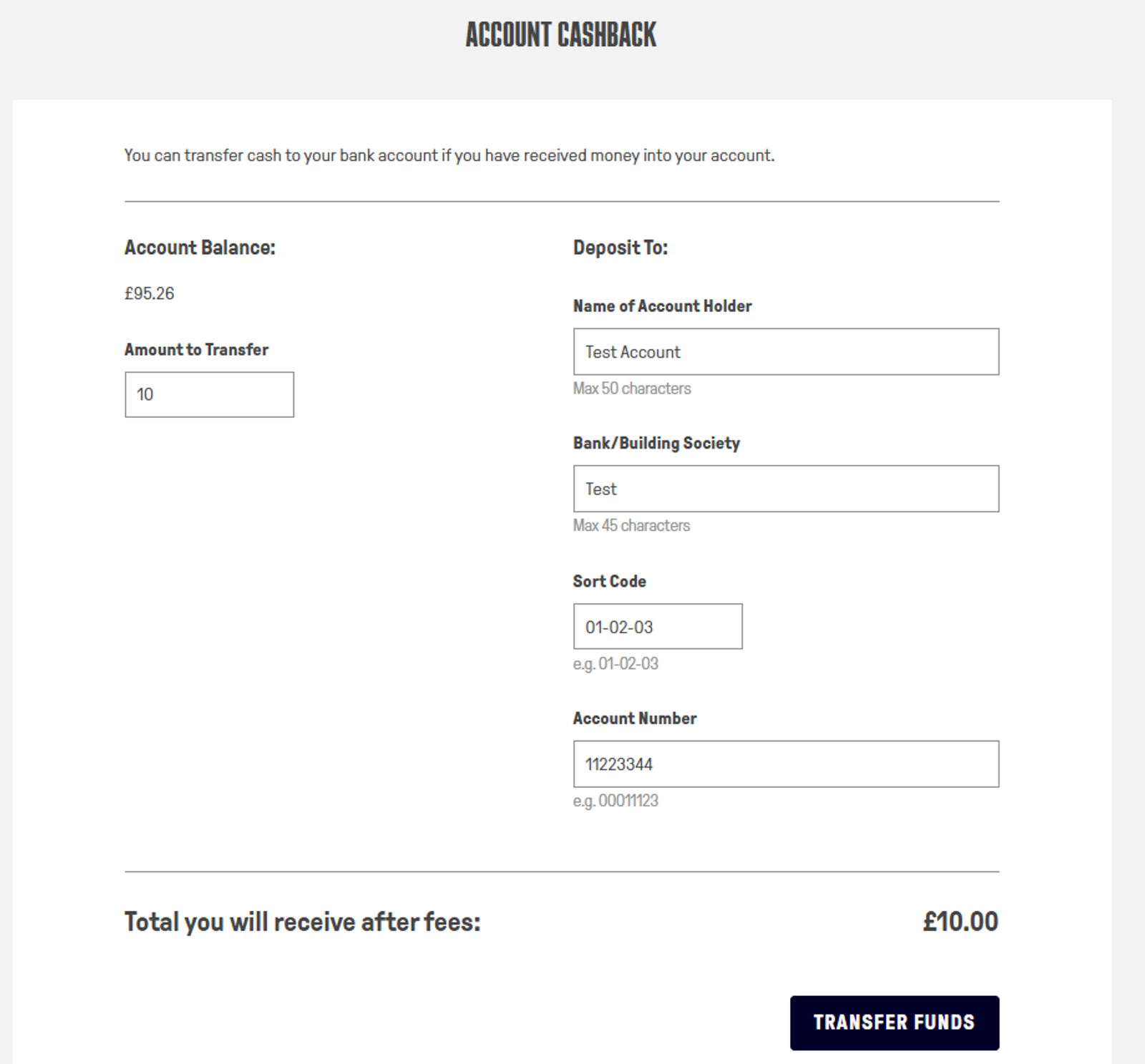
Requested cashback will be processed at the start of each month, with the first transfer being processed on 1 July 2026. Please allow 3-5 working days for the funds to appear in your bank account. There are no fees charged to the supporter for using this feature.




















© Copyright 1878 - 2026 Everton Football Club