

Only current 24/25 Season Ticket Members, 24/25 Hospitality Members, Everton Shareholders; and Supporters who have committed to a 2025/26 Premium Bars, Restaurants and Experiences Membership at Everton Stadium will have access to the ballots for Test Events 1 and 2.
Before proceeding, please ensure you are logged into your online account at https://www.eticketing.co.uk/evertonfc/ under the correct supporter number.
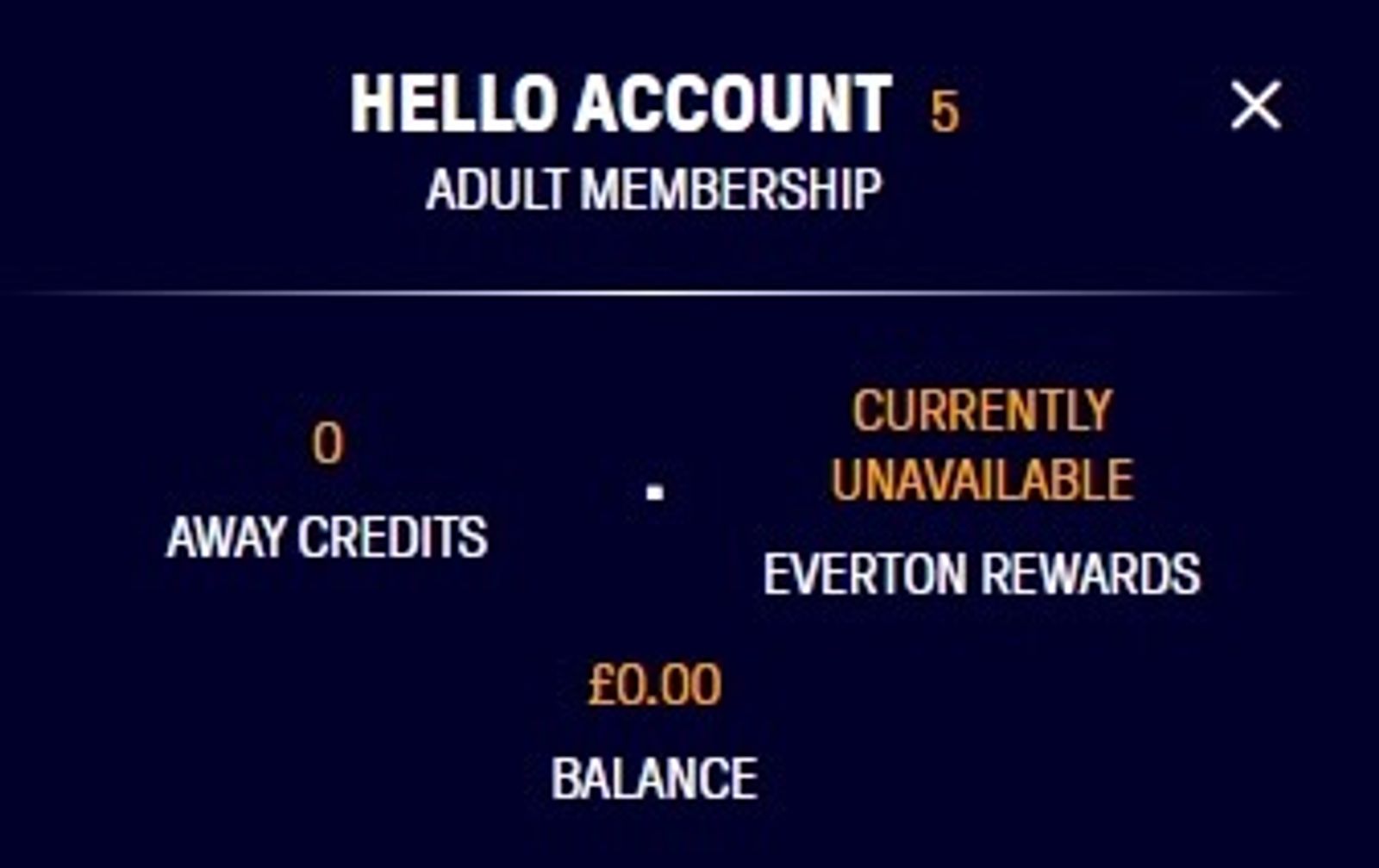
You can confirm your supporter number by clicking the profile icon in the top right corner of the screen – your supporter number will be in orange to the right of your first name.
Step 1 – Navigating to the event
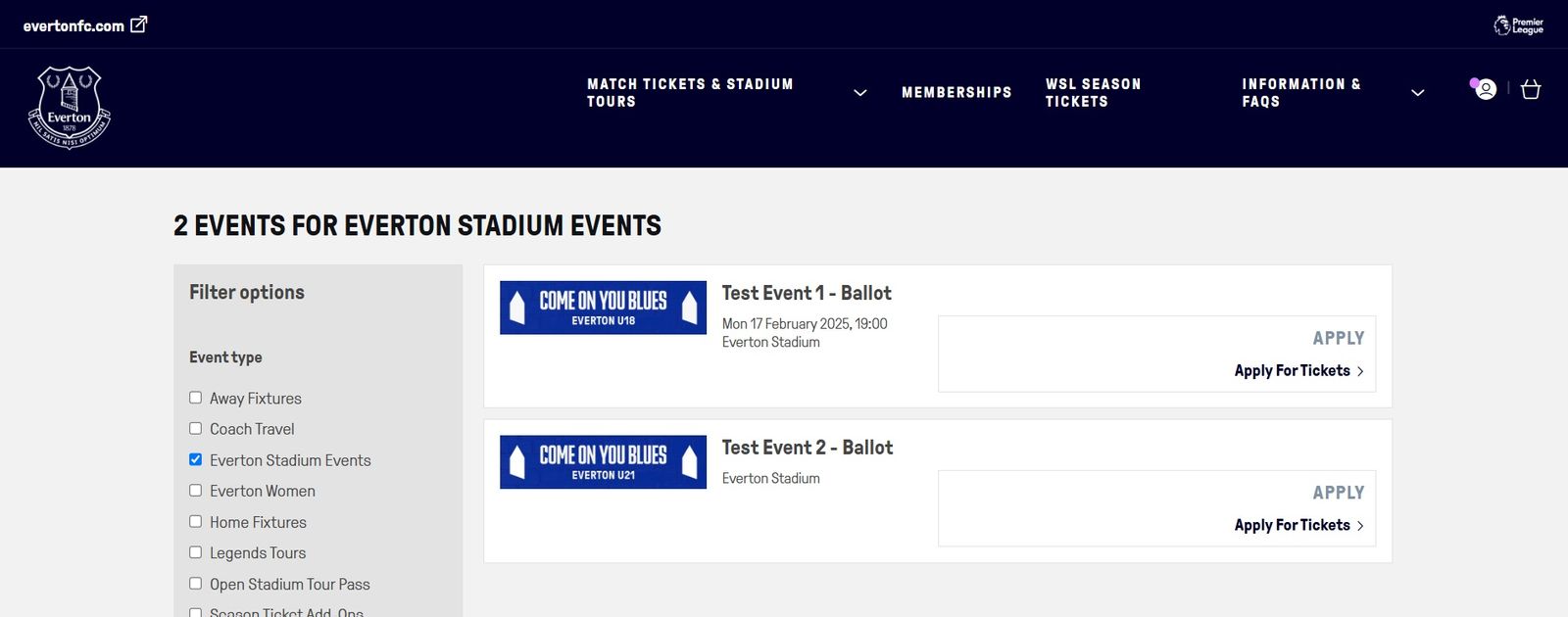
To access the test events ballots, look to the navigation bar at the top of the website and hover over “Match Tickets & Stadium Tours” (For mobile users, tap the three horizontal lines in the top left corner, and tap “Match Tickets & Stadium Tours”. From the list that will appear, select “Everton Stadium Events”.

Upcoming events under this category will be displayed in date order. Events that are allocated through a ballot will show “APPLY” on the right-hand side of the event information. To apply, click “Apply for Tickets”.
The loading time for the event ballot page may be longer than other pages on the site – please click the link once and allow enough time for the page to load correctly.
If you are not logged into an account with the correct eligibility to apply for tickets, you may see an error message.
Step 2 – Confirm the people within your application
The account you are logged in as will now be pre-populated as the first applicant. Each applicant can apply for a maximum of 1 ticket.
To add other members into your application, select “Add another member to your application”.
You can add another 5 members to your application to bring the total number in the application to 6.
Adding people to your application within your network
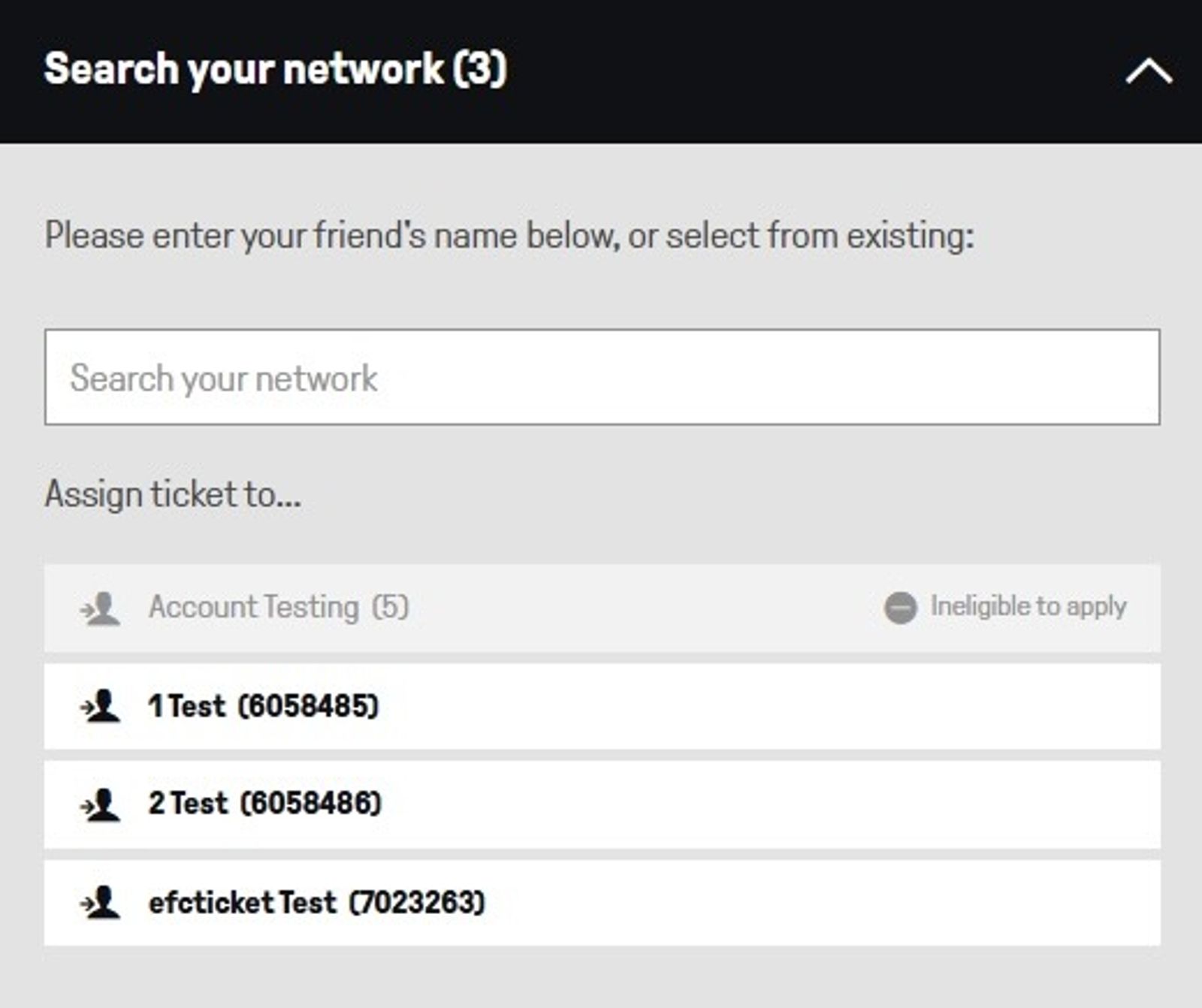
To add people already in your network, go to “Search your network” – all accounts within your network will be visible. Select the account to add it to your application. If the account is greyed out, they are ineligible to apply for the ballot. Repeat step 2 to add each additional person.
Adding a person outside of you network
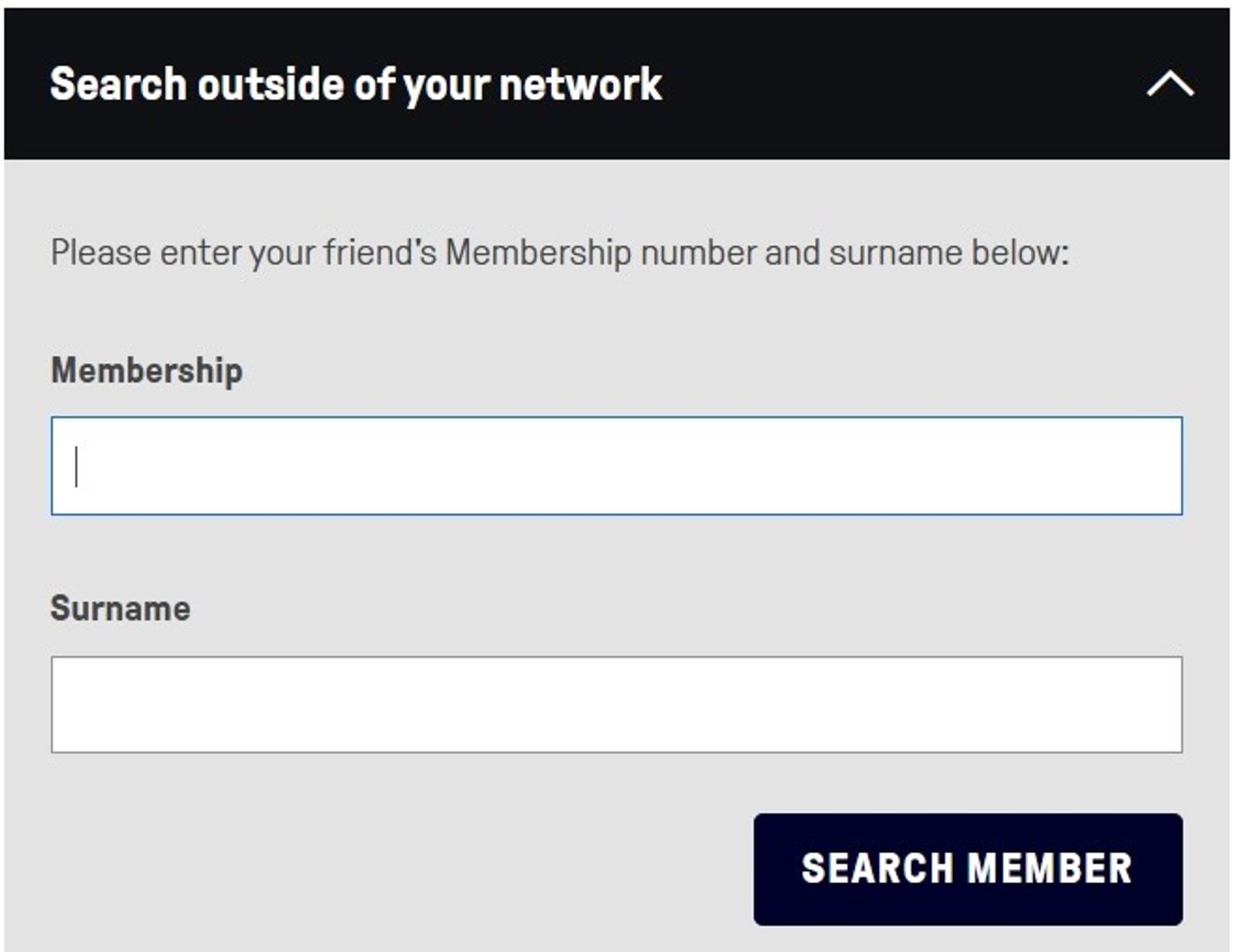
To add a person outside of your network, go to “Search outside of your network”. Populate the supporter number and surname linked to the account. Click Search member to add the person to the application.
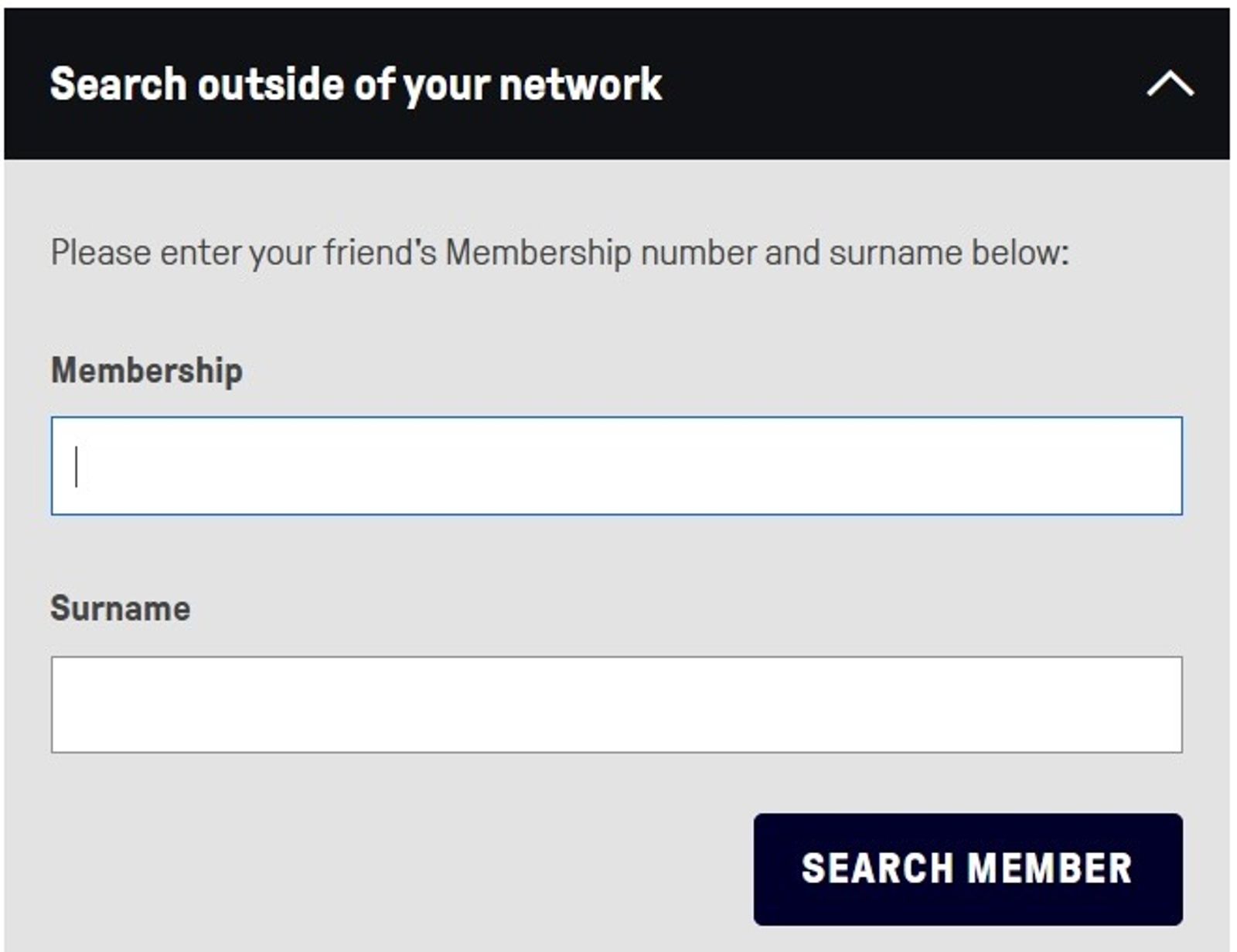
If the person you search is ineligible for the chosen ballot, the below message will be displayed-

Step 3 – Choose the preferred price bands
To select your preferred price bands for the application, go to “Price Band Preferences”. Choose a price band as your first and second preference for your application.
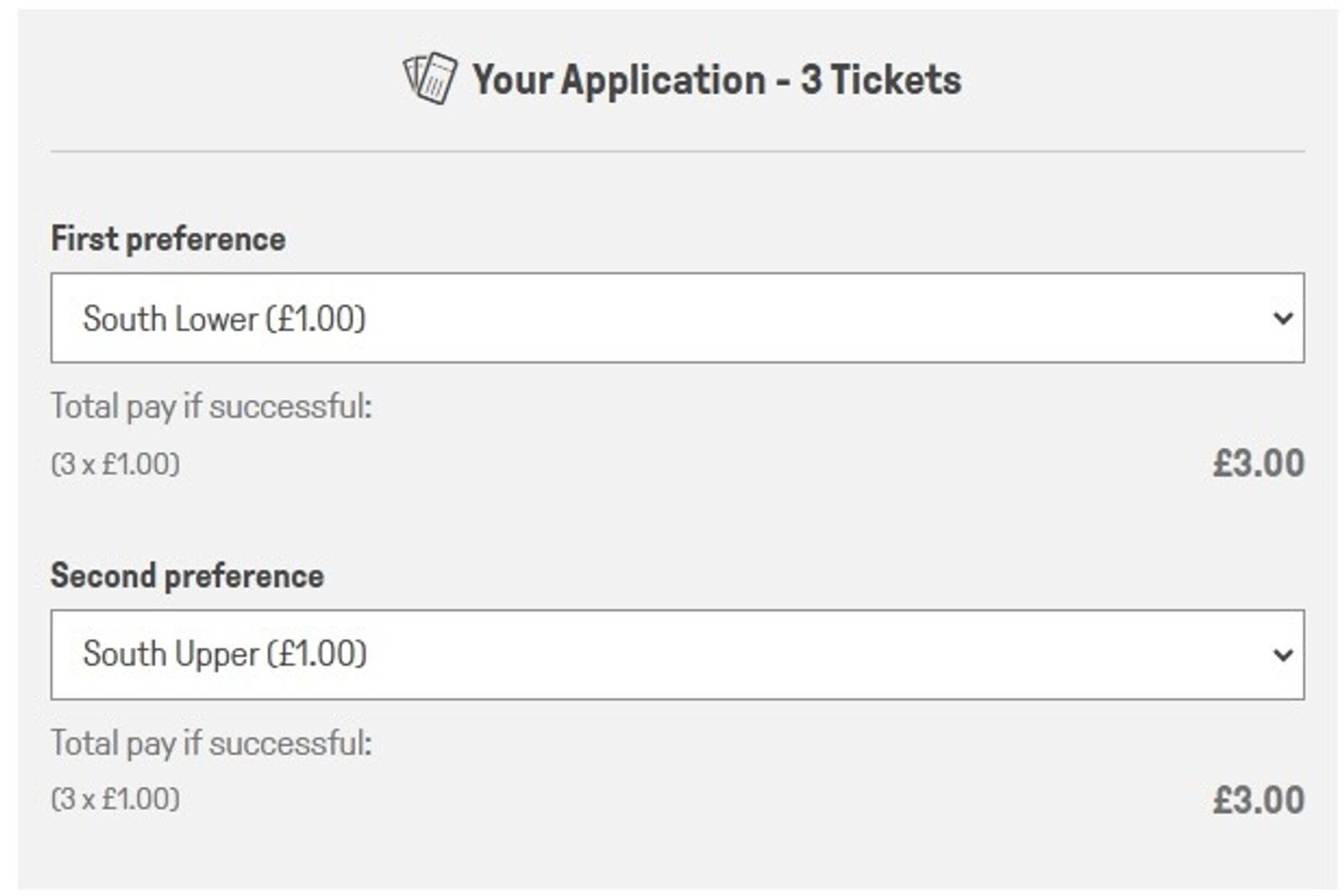
PLEASE NOTE: All ticket prices prior to the ballot being processed are set to £1 per ticket. The system will run an active card check based on your selection (an application of 6 tickets will run an active card check for £6) - you will not be charged any amount prior to the ballot being run.
If your application is successful, you will be charged the full ticket amount based on the relevant age band which that supporter holds a Season Ticket under.
Step 4 – Confirm your application
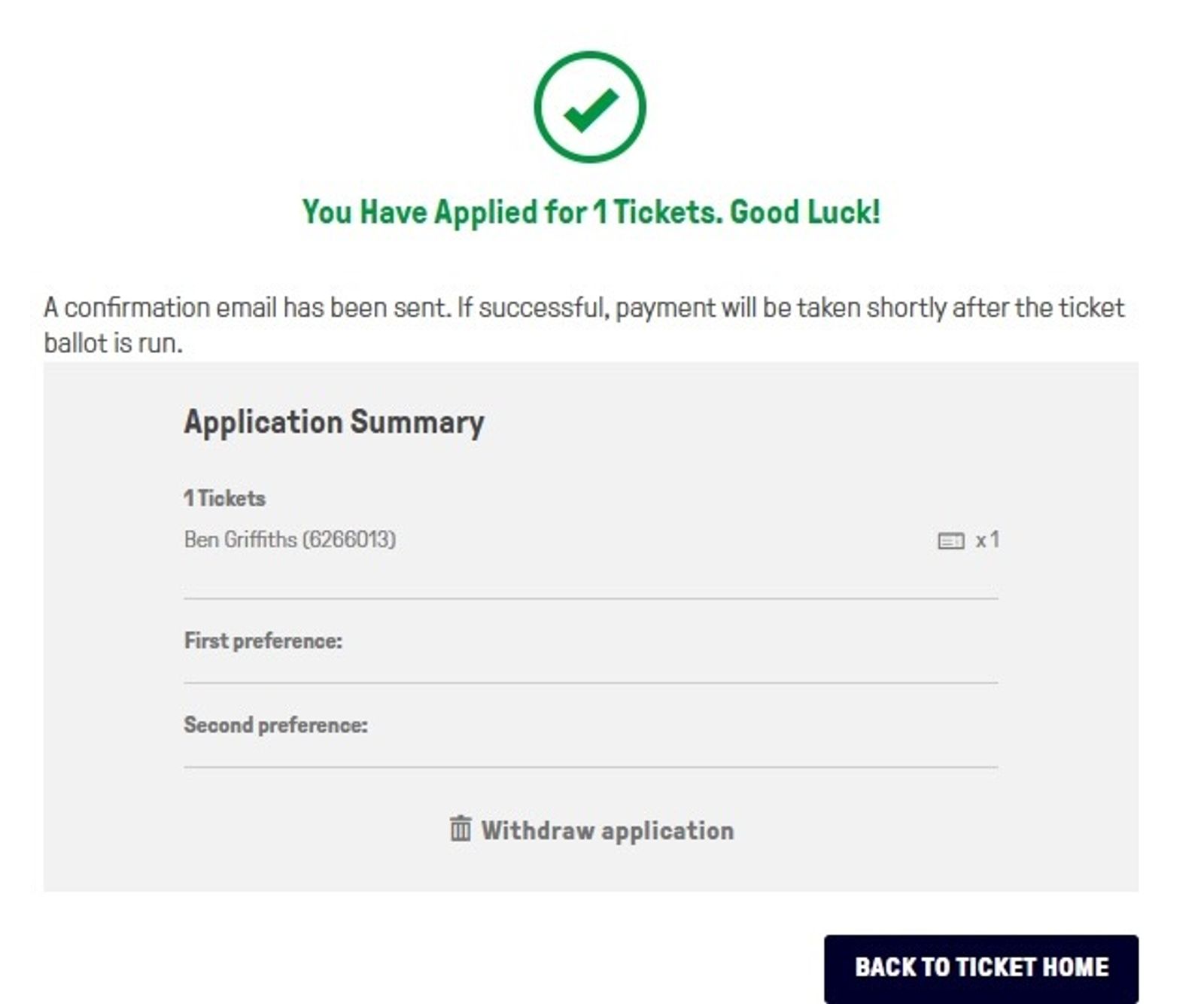
You will be prompted to enter your card details for payment. Accept the terms and conditions and Confirm Application. Upon completion of your application, a summary of your application will be displayed, and you will receive an email confirming your application.
If you have made a mistake with your application, navigate back to the event and you will see your summary confirmation. At the bottom of the summary will be “Withdraw application” – click this to withdraw your application, and you will be able to reapply to the ballot.
























© Copyright 1878 - 2026 Everton Football Club